功能組別選民登記截止日期:4月2日
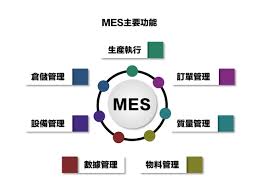
What is Manufacturing execution system (MES)

Manufacturing execution systems (MES) are computerized systems used in manufacturing, to track and document the transformation of raw materials to finished goods. MES provides information that helps manufacturing decision makers understand how current conditions on the plant floor can be optimized to improve production output.[ MES works in real time to enable the control of multiple elements of the production process (e.g. inputs, personnel, machines and support services).
MES may operate across multiple function areas, for example: management of product definitions across the product life-cycle, resource scheduling, order execution and dispatch, production analysis and downtime management for overall equipment effectiveness (OEE), product quality, or materials track and trace. MES creates the “as-built” record, capturing the data, processes and outcomes of the manufacturing process. This can be especially important in regulated industries, such as food and beverage or pharmaceutical, where documentation and proof of processes, events and actions may be required.
The idea of MES might be seen as an intermediate step between, on the one hand, an enterprise resource planning (ERP) system, and a supervisory control and data acquisition (SCADA) or process control system on the other; although historically, exact boundaries have fluctuated. Industry groups such as MESA International—Manufacturing Enterprise Solutions Association were created in the early 1990s in order to address the complexity, and advise on execution, of MES Systems.
“Manufacturing Execution Systems [help] create flawless manufacturing processes and provide real-time feedback of requirement changes”,[ and provide information at a single source. Other benefits from successful MES implementation might include:
- Reduced waste, re-work and scrap, including quicker setup times
- More accurate capture of cost-information (e.g. labor, scrap, downtime, and tooling)
- Increased uptime
- Incorporate paperless workflow activities
- Manufacturing operations traceability
- Decreases downtime and easy fault finding
- Reduced inventory, through the eradication of just-in-case inventory
香港人日記–反送中運動
經過”反送中運動”的局勢惡化下,香港已成為了整個中外的第一個爭持點,以及中國內部的權力鬥爭點,"一國兩制五十年不變"的假面具已撕破了。之前大眾認為香港警察是保護市民的一流部門,但是經過七月廿一日的警黑合作,八月三十一日的警察地鐵站內暴打市民,之後出現多宗離奇自殺案件,香港警察的恐怖真面目才表露出來,市民才驚覺警察(或其它部門),已經變成大陸的作風,用極權統治,不會理會市民的生死。這場”反送中運動”之後,如果大陸政府高抬貴手,香港或有一絲機會在這場掙扎求存下來,享受多幾年自由吧。
當香港回歸大陸後,香港始终會被大陸化,只差遲早;”反送中運動”之後,港府和反對派實際上已是雙輸,香港政府無能,示威者暴動入獄,往後,只會加速大陸化,東方之珠已變淡了。董健華說:「中國好,香港會更好。」事實上,中國好,無需利用香港時,香港又怎能更好呢?現時不要倚靠大陸,努力自強找出香港的另一亮點,才可走出困局主佑!
數字化工廠的整體效益
东莞市领导赴镇街督导安全生产大排查(25-29/6/2018)
因今年东莞市发生多起安全事故:
- 2018年4月12日11时许,高埗三联村一钢筋结构构筑物发生坍塌,造成1死1伤,4人被困。
- 2018年5月26日上午9时30分许,大岭山大沙村的东莞市华业鞋材有限公司发生一起有限空间气体中毒事故,造成4人死亡。
- 2018年5月26日晚上8时许,塘厦镇发生一起溺水事故,造成2人死亡。
- 2018年5月27日凌晨6时许,樟木头镇发生一起交通事故,造成2人死亡。
因此夏季安全形式严峻,东莞市领导会赴镇街督导安全生产大排查。
Setup of Ant Miner A3 Machine Mining with sia.tech pool
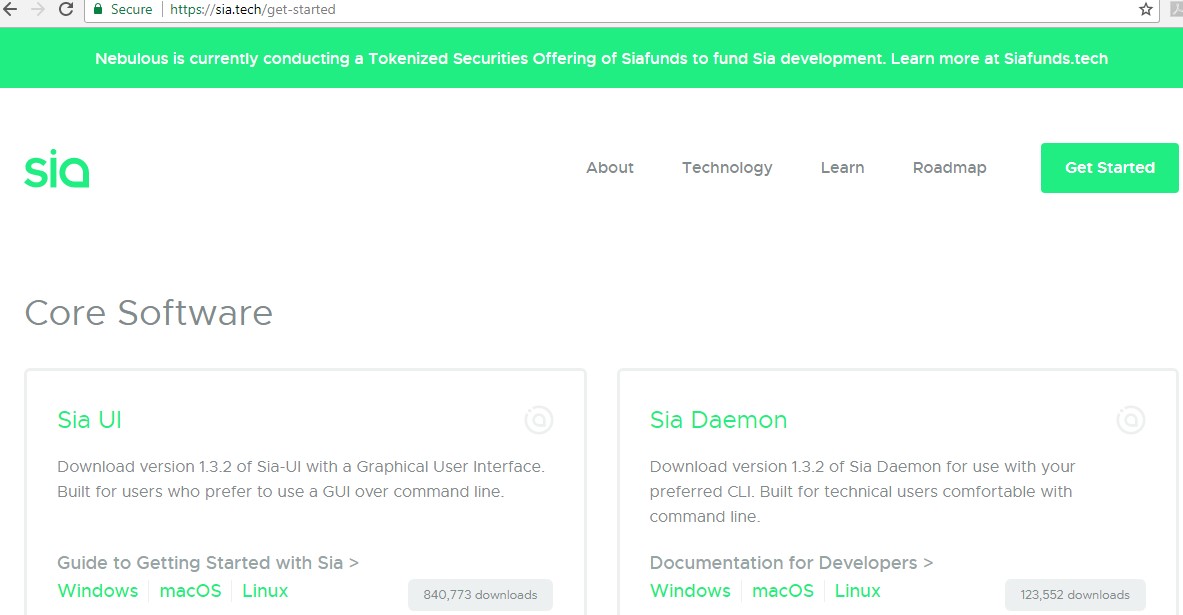
Step 1. Download sia program from https://sia.tech/get-started
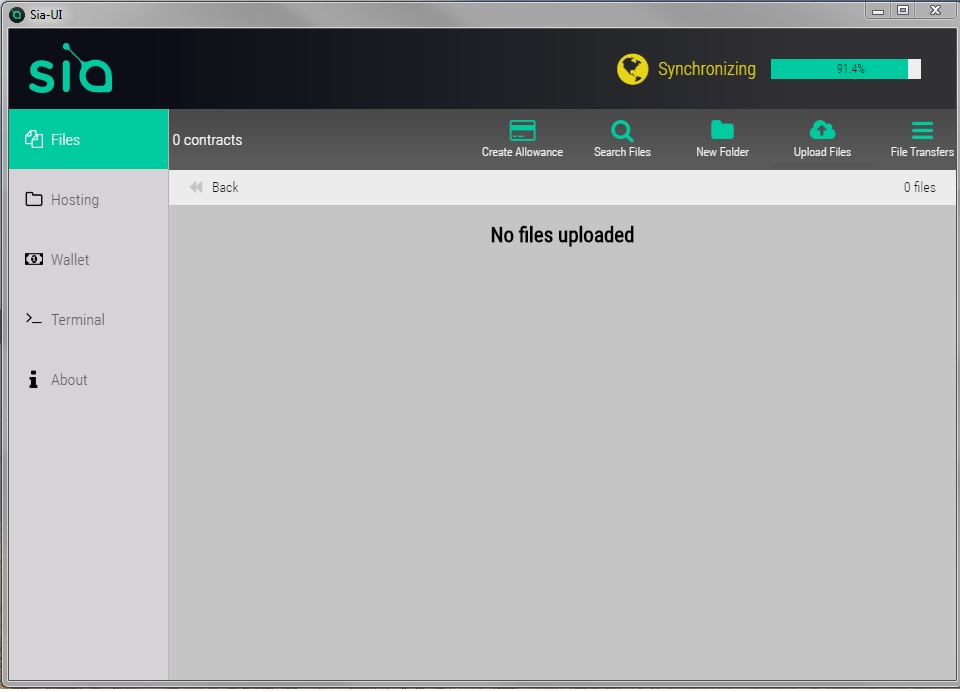
Step 2. Start the Sia-UI program, and wait for “synchronizing” done, which we may wait for one or two days, so you have better run it in a stable computer.
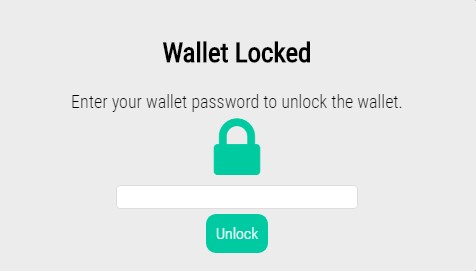
Step 3. Create a wallet, mark down the seek and passphrase, and unlock it.
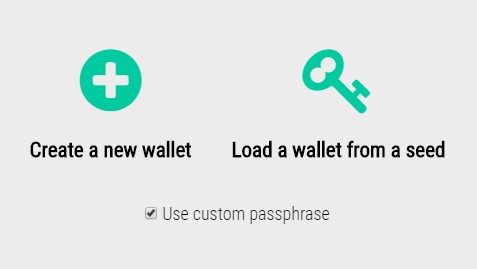
Click on the Wallet tab on the left. You’ll see two options – “Create a new wallet” or “Load a wallet from a seed”. If this is your first time creating a wallet, you’ll select Create a new wallet. It is also recommended to check the box to Use custom passphrase first, and create a password for your wallet. If you don’t, your wallet password will be the same as your wallet seed, which is not ideal, especially if you plan on hosting.
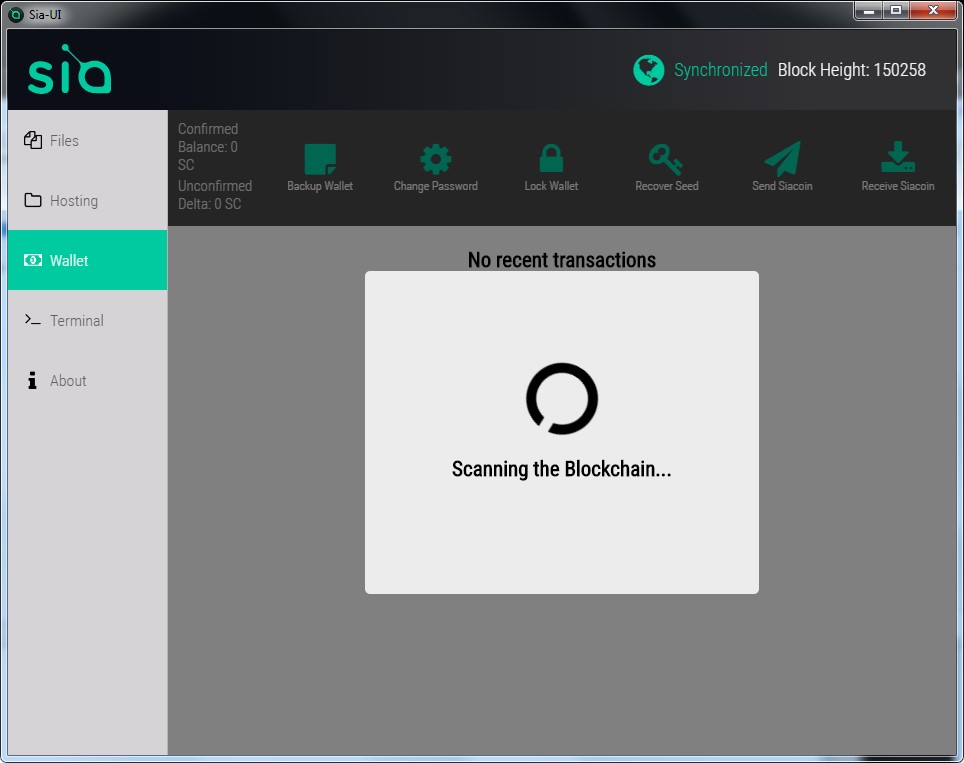
The wallet will say it’s scanning the blockchain, which may take several minutes. Wait for it to complete, or go grab a snack.
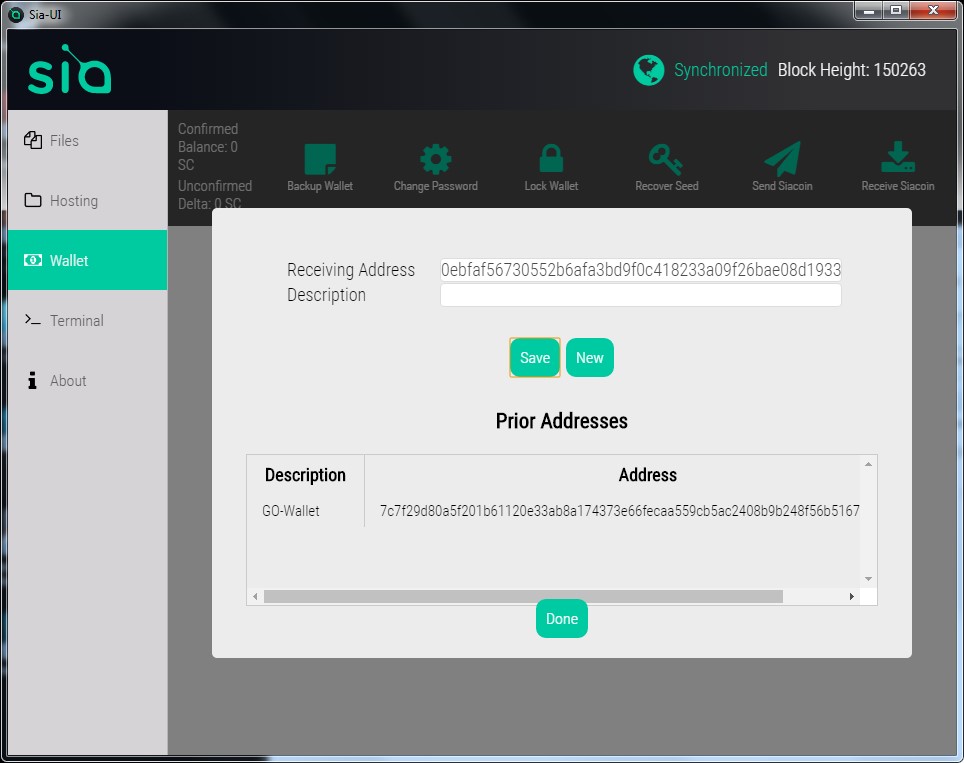
Step 4. Create a wallet address
A receiving address will be automatically generated for you in the top box, and you can give it a name in the bottom box if you want. Click Save to add it to the list of “Prior Addresses”. You can create as many addresses as you want, and they’ll all point to your wallet. Sia makes a new wallet address by default every time you click “Receive Siacoin” in order to help protect your privacy, but you can use any of your previous addresses at any time and they’ll still work.
Step 5. Backup your sia wallet
There is no option to backup the wallet in the sia-ui software! But you can backup the files by yourself!The files location is configured in the config.json file. The config.json is located in “Sia-UI-v1.2.0-win32-x64resourcesapp” folder. Open the file with text editor,you can see the “datadir” item.This item describe the backup files location! in the default the files location is in the C:userusernameAppDataRoamingSia-UI! Please do not go at manually backing up files from the Sia-UI folder as these are not guarenteed to work if placed back in a newer version of Sia-UI, above method is documented and always will work.
All you need to recover your wallet is to write down on a physical paper your seed, which is the same as your wallet password.
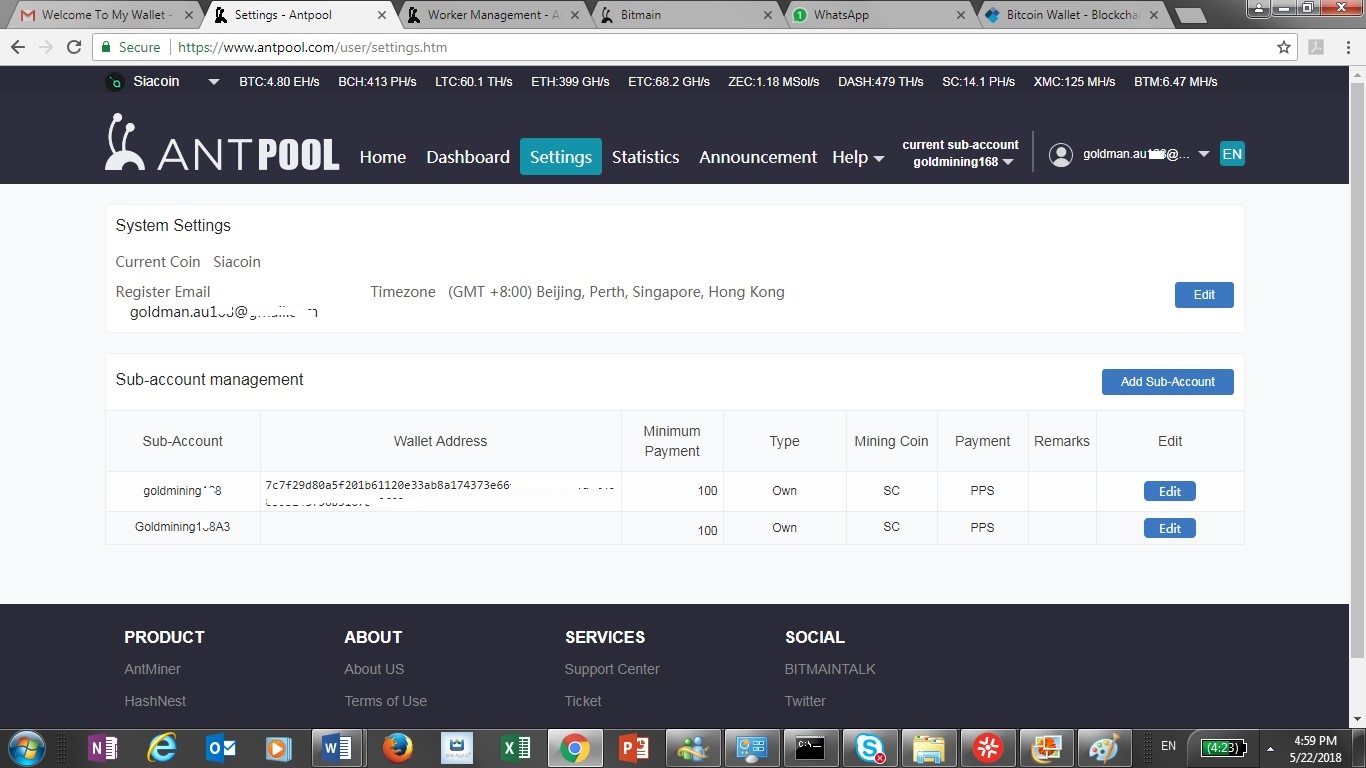
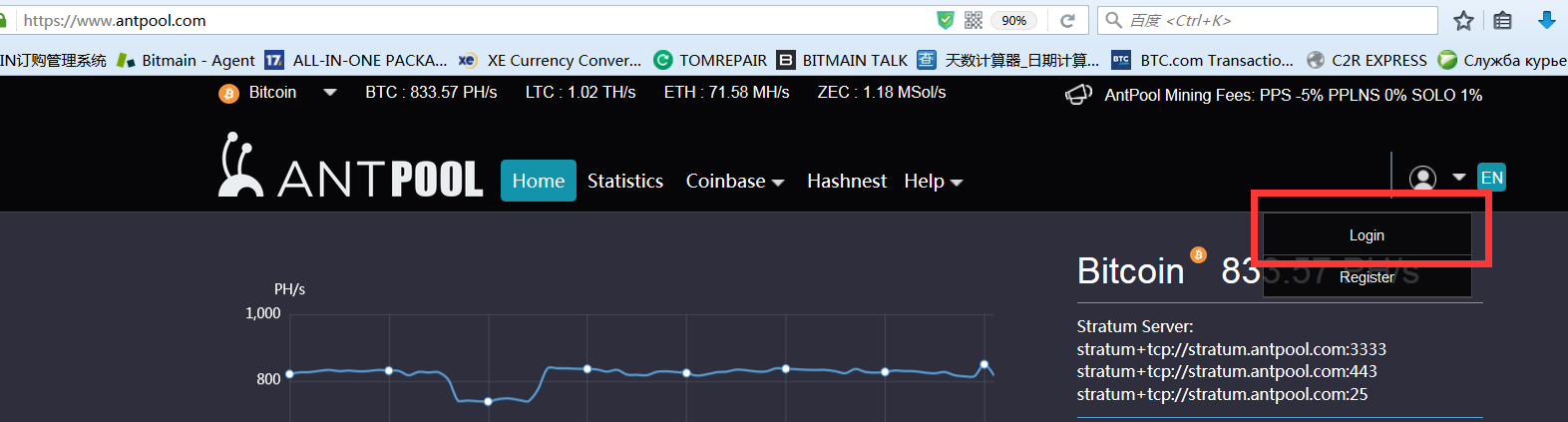
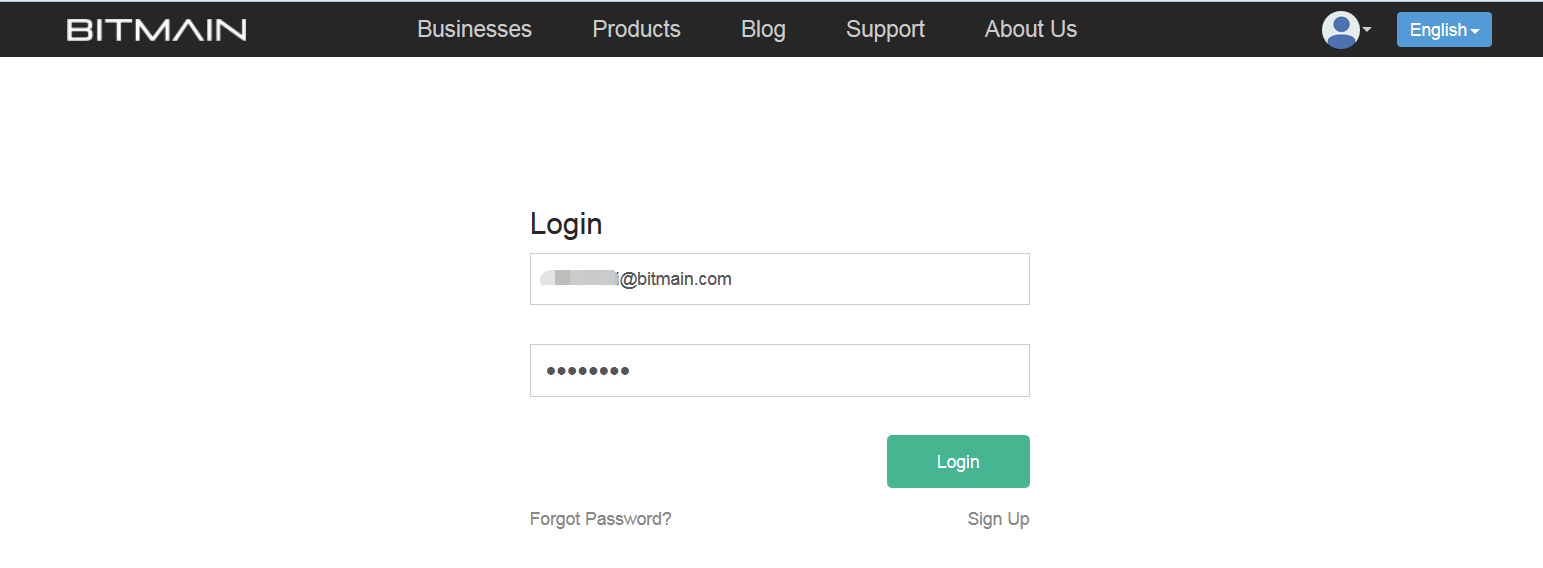
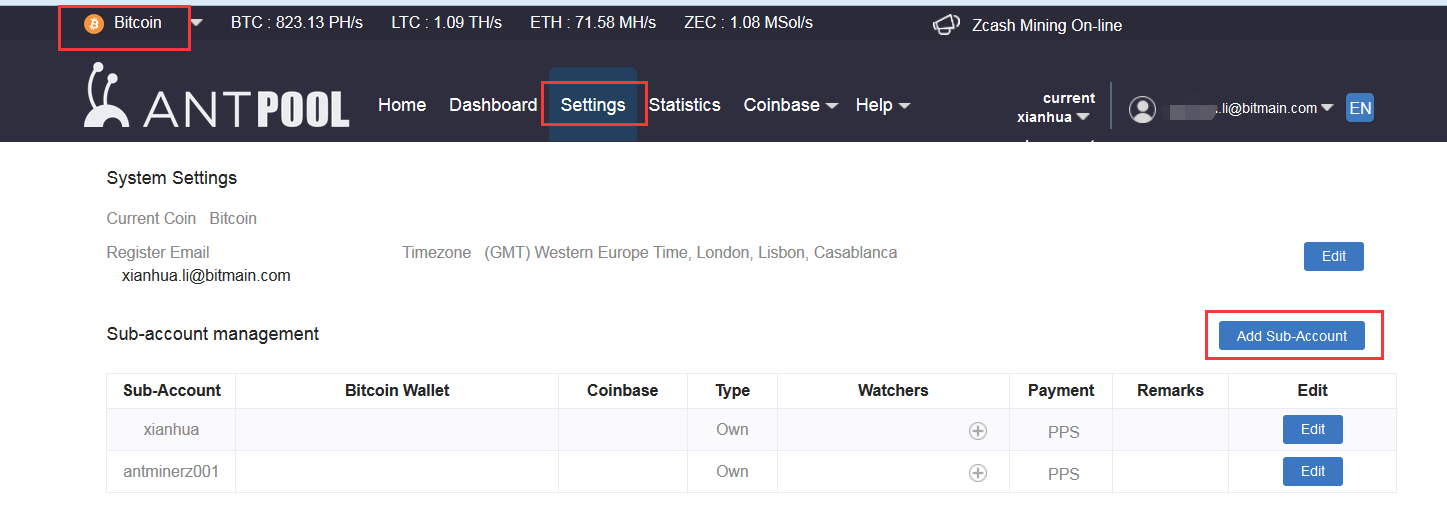
Step 6. Register account from antpool.com, and then select siacoin in the top right hand corner.
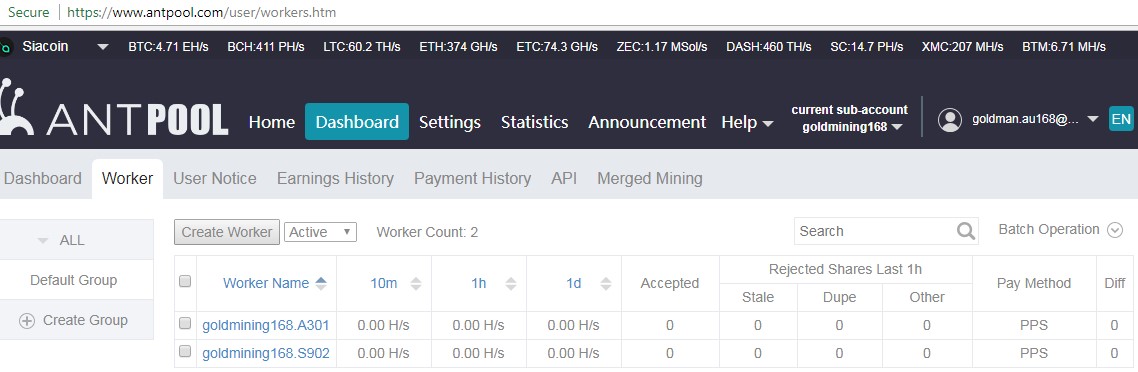
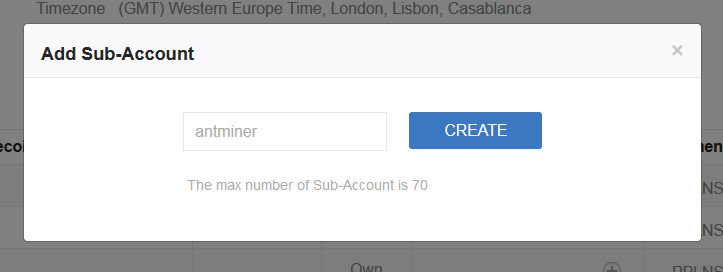
And then create account, sub-account, and worker as below:
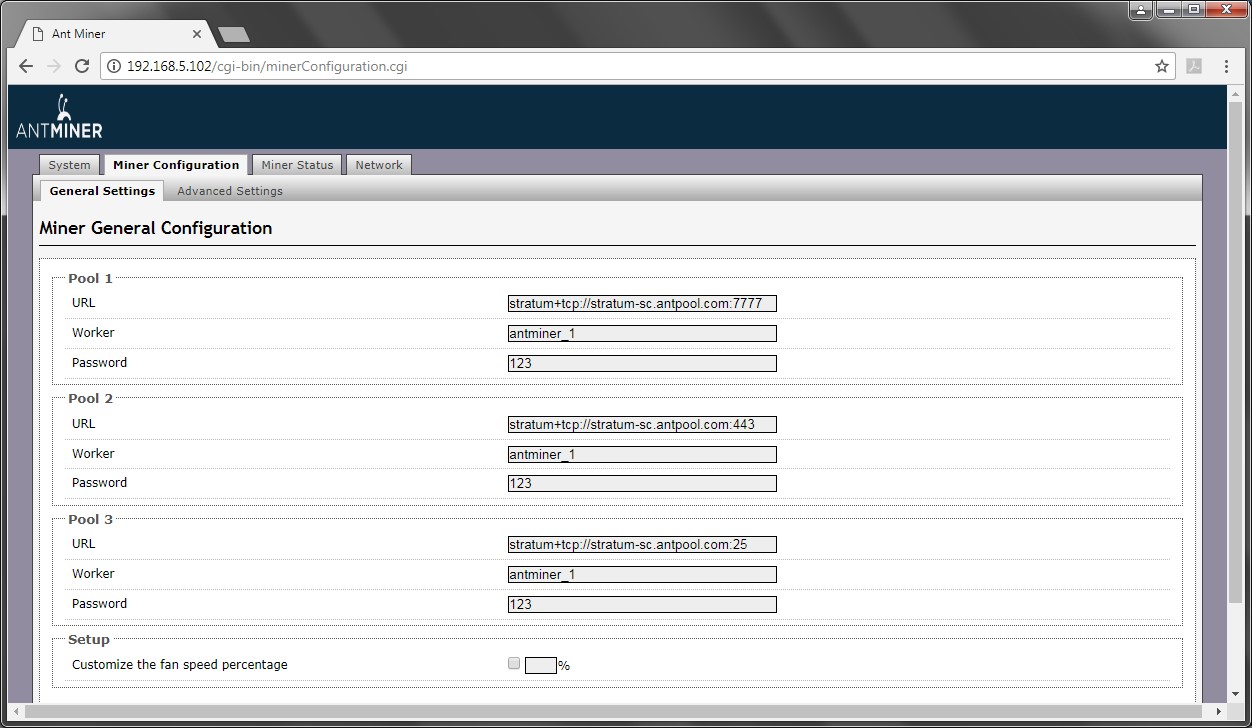
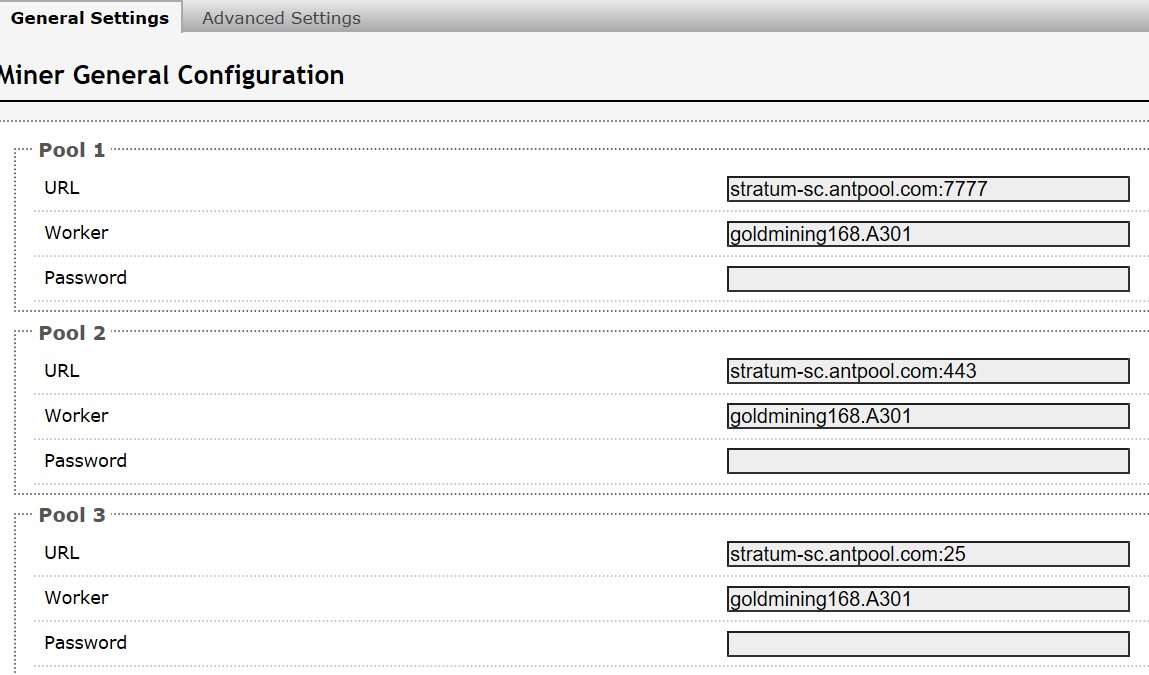
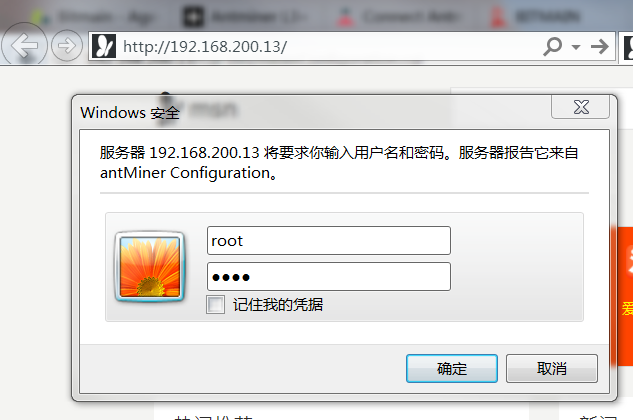
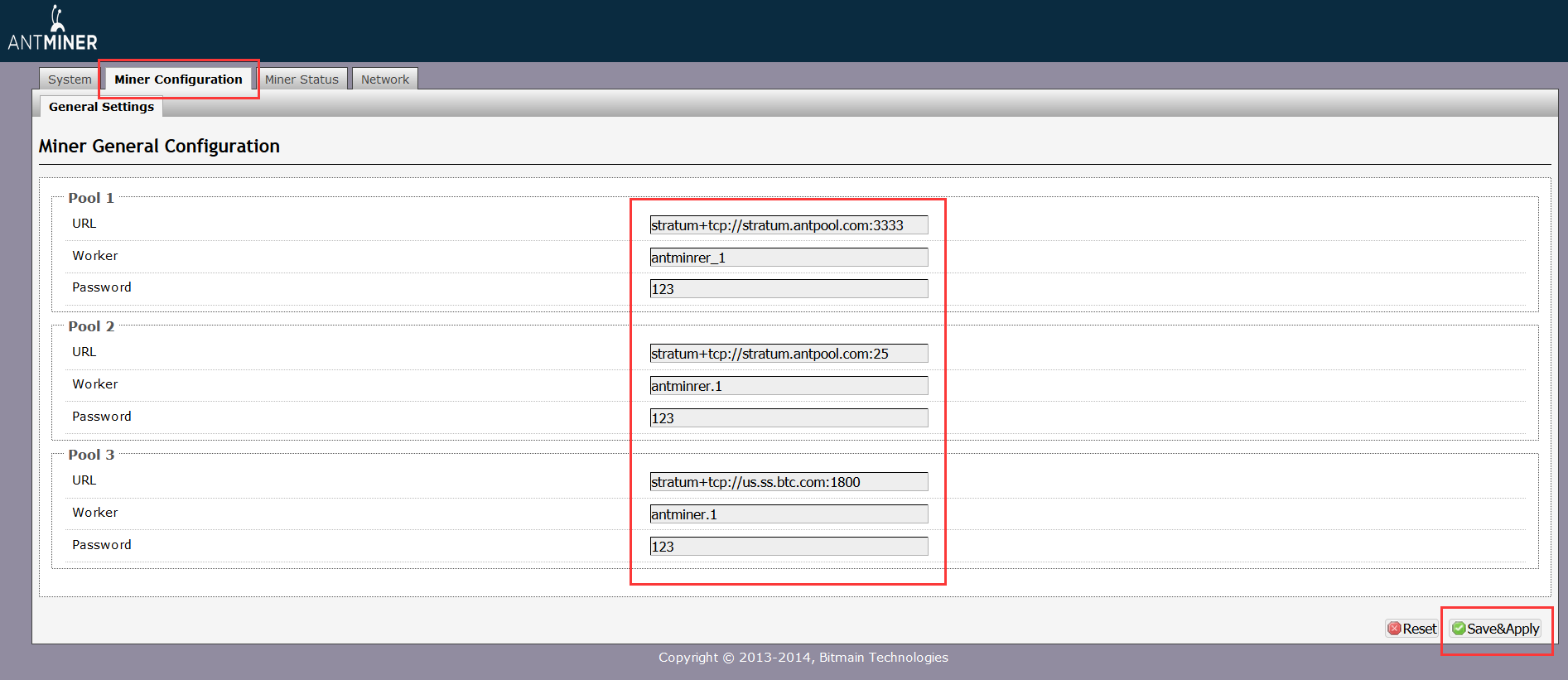
Step 7. Setup in mining machine as below:
Change from original default setting below:
To:
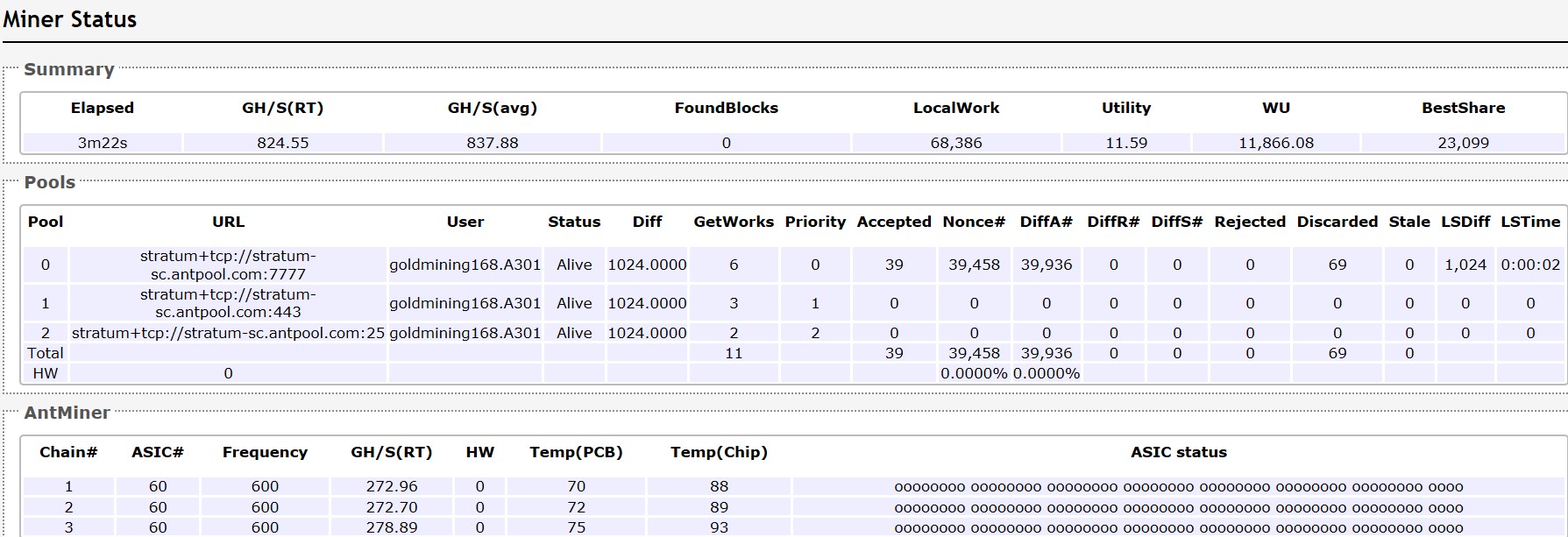
Step 8: Once you’ve started mining, you can check your stats from miner status as below example:
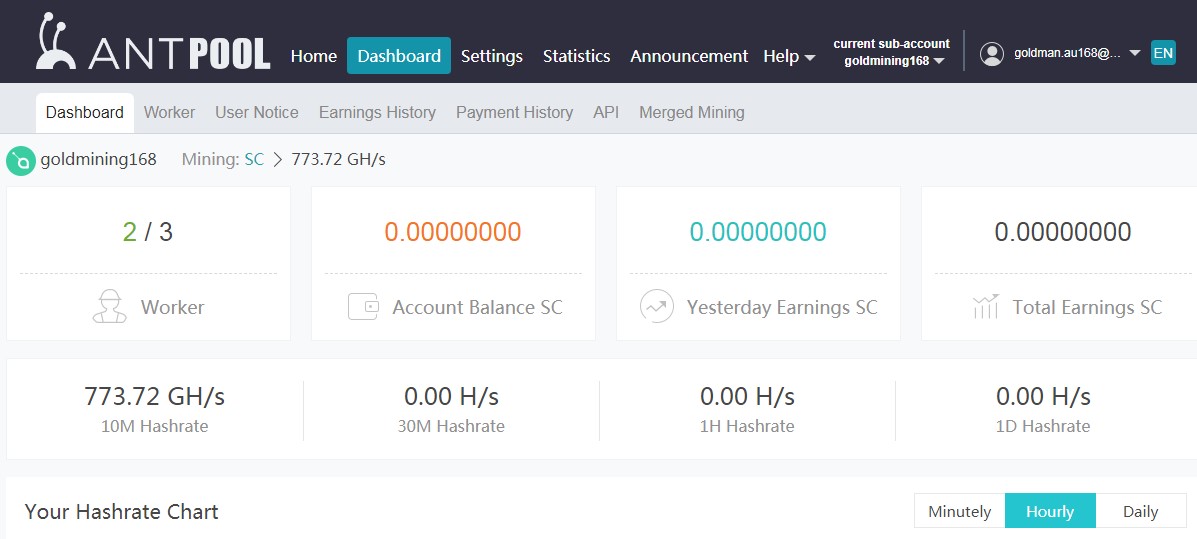
Step 9. My earning monitor screen from antpool as below:
How to Fix The procedure entry point ucrtbase.terminate is missing or could not be located
Error The procedure entry point ucrtbase.terminate could not be located in the dynamic link library api-ms-win-crt-runtime-l1-1-0.dll or The program can’t start because api-ms-win-crt-runtime-l1-1-0.dll is missing from your computer. Try reinstalling the program to fix this problem. is usually caused by corrupt or outdated Visual C++ Redist where another program has overwritten the libraries, or the program you are trying to run requires a newer version of the Visual C++. The latest one is 2017. The second most common for this issue to occur is when Windows Updates are outdated or the KB2999226 (Universal CRT) has failed. You cannot install Microsoft Visual C++ 2015 redist (runtime) unless you have Windows Update KB2999226 installed (at least on Windows 7 64-bit SP1).
Method 1: Repair Corrupt System Files
Download and run Reimage Plus to scan and restore corrupt and missing files from here, and then see if the issue is fixed if not then try the other methods listed below.
Method 2: Check for and Install Windows Updates
On Windows 10
- Click Start
- Choose Settings
- Choose Update and Security
- Choose Windows Updates
- Click Check for Updates
- If there are updates, you’ll see a message telling you that important or optional updates are available, or telling you to review important or optional updates, click the message to view the updates to install.
- In the list, enable the checkboxes for the updates Important or Optional, and then click Install.
On Windows 7
- Click Start
- Type Updates
- Choose Windows Updates
- Choose Check for Updates
- Install the Updates, and Reboot the PC.
The one we are looking for through Windows Update is the Universal CRT Update KB2999226 which can also be downloaded and installed as a stand alone package from (here).
For Windows 7 Only:
If the issue is still not resolved on Windows 7 after running the updates and install the KB2999226 manually, then follow these steps:
- Hold the Windows Key and Press R. In the Run Dialog, type cmd and Click OK.
- In the command prompt window, type net stop wuauserv
- Then type ren c:windowsSoftwareDistributionWuRedir WuRedir1
Then run the Windows Update again, reboot multiple times and check to make sure that all the updates are installed.
The procedure entry point ucrtbase.terminate could not be located in the dynamic link library api-ms-win-crt-runtime-l1-1-0.dll
Modified on: Fri, 23 Jun, 2017 at 11:18 AM
When opening EasyWorship the following error appears “the procedure entry point ucrtbase.terminate could not be located in the dynamic link library api-ms-win-crt-runtime-l1-1-0.dll”.
This is a problem with a Windows library that is missing or corrupted. In many cases this can be fixed by installing the “Update for Universal C Runtime in Windows“.
Convert between xls and xlsx by python and compile python
1. To convert xls to xlsx:
$ pip install pyexcel pyexcel-xls pyexcel-xlsx
Run Python Script as:
import pyexcel as p
p.save_book_as(file_name='your-file-in.xls',
dest_file_name='your-new-file-out.xlsx')
If you do not need a program, you could install one additinal package pyexcel-cli::
$ pip install pyexcel-cli
$ pyexcel transcode your-file-in.xls your-new-file-out.xlsx
The transcoding procedure above uses xlrd and openpyxl.
2. To convert between xlsx and xls vice and versa:
import win32com.client as win32
fname = "full+path+to+xls_file"
excel = win32.gencache.EnsureDispatch('Excel.Application')
wb = excel.Workbooks.Open(fname)
wb.SaveAs(fname+"x", FileFormat = 51) #FileFormat = 51 is for .xlsx extension
wb.Close() #FileFormat = 56 is for .xls extension
excel.Application.Quit()
3. Compile via py2exe
3.1. Create your setup script (setup.py)
py2exe extends Distutils with a new “command”. If you’ve installed third party Python modules then there’s a good chance you’ve seen at least one distutils command:
C:Tutorial>python setup.py install
“install” is a Distutils command that installs something (typically a Python module or package). The details Distutils needs to do that installation are contained in setup.py (and sometimes other associated files).
“py2exe” is a new Distutils command that is added when you import py2exe. To use py2exe you need to create a setup.py file to tell Distutils and py2exe what you want to do. Here’s a setup.py whose simplicity is appropriate for our sample program…
3.2. Run your setup script
The next step is to run your setup script. Make sure to give the py2exe command and expect to see lots and lots of output:
C:Tutorial>python setup.py py2exe
3.3. Test your executable
Now that the package has been created it is ready to test:
C:Tutorial>cd dist C:Tutorialdist>hello.exe Hello World
4. Compile via pyinstaller
[Anaconda3] C:Usersgoldmanau>pip install pyinstaller
[Anaconda3] C:Usersgoldmanau>pyinstaller --version
3.3.1
[Anaconda3] C:Usersgoldmanau>pyinstaller --onefile conv.py
418 INFO: PyInstaller: 3.3.1
418 INFO: Python: 3.5.1
418 INFO: Platform: Windows-7-6.1.7601-SP1
420 INFO: wrote C:Usersgoldmanauconv.spec
424 INFO: UPX is not available.
428 INFO: Extending PYTHONPATH with paths
['C:\Users\goldmanau', 'C:\Users\goldmanau']
428 INFO: checking Analysis
429 INFO: Building Analysis because out00-Analysis.toc is non existent
429 INFO: Initializing module dependency graph...
434 INFO: Initializing module graph hooks...
438 INFO: Analyzing base_library.zip ...
12259 INFO: running Analysis out00-Analysis.toc
14333 INFO: Caching module hooks...
14347 INFO: Analyzing C:Usersgoldmanauconv.py
14350 INFO: Processing pre-safe import module hook win32com
15341 INFO: Loading module hooks...
15342 INFO: Loading module hook "hook-pydoc.py"...
15343 INFO: Loading module hook "hook-pythoncom.py"...
15913 INFO: Loading module hook "hook-pywintypes.py"...
16460 INFO: Loading module hook "hook-win32com.py"...
16770 INFO: Loading module hook "hook-encodings.py"...
16970 INFO: Loading module hook "hook-xml.py"...
17803 INFO: Looking for ctypes DLLs
17879 INFO: Analyzing run-time hooks ...
17884 INFO: Including run-time hook 'pyi_rth_win32comgenpy.py'
17897 INFO: Looking for dynamic libraries
19407 INFO: Looking for eggs
19407 INFO: Using Python library c:usersgoldmanauappdatalocalcontinuumanac
onda3python35.dll
19408 INFO: Found binding redirects:
[]
19415 INFO: Warnings written to C:Usersgoldmanaubuildconvwarnconv.txt
19520 INFO: Graph cross-reference written to C:Usersgoldmanaubuildconvxref-
conv.html
19587 INFO: checking PYZ
19587 INFO: Building PYZ because out00-PYZ.toc is non existent
19588 INFO: Building PYZ (ZlibArchive) C:Usersgoldmanaubuildconvout00-PYZ.p
yz
21378 INFO: Building PYZ (ZlibArchive) C:Usersgoldmanaubuildconvout00-PYZ.p
yz completed successfully.
21402 INFO: checking PKG
21403 INFO: Building PKG because out00-PKG.toc is non existent
21404 INFO: Building PKG (CArchive) out00-PKG.pkg
21752 INFO: Updating manifest in C:UsersgoldmanauAppDataRoamingpyinstaller
bincache00_py35_64bitpython35.dll
21753 INFO: Updating resource type 24 name 2 language 1033
27241 INFO: Building PKG (CArchive) out00-PKG.pkg completed successfully.
27253 INFO: Bootloader c:usersgoldmanauappdatalocalcontinuumanaconda3lib
site-packagesPyInstallerbootloaderWindows-64bitrun.exe
27254 INFO: checking EXE
27255 INFO: Building EXE because out00-EXE.toc is non existent
27256 INFO: Building EXE from out00-EXE.toc
27258 INFO: Appending archive to EXE C:Usersgoldmanaudistconv.exe
27345 INFO: Building EXE from out00-EXE.toc completed successfully.
Compile program in C:Usersgoldmanaudistconv.exe
Custom TinyWebDB Service
Creating a Custom TinyWebDB Service
TinyWebDB is an App Inventor component that allows you to store data persistently in a database on the web. Because the data is stored on the web instead of a particular phone, TinyWebDB can be used to facilitate communication between phones and apps (e.g., multi-player games).
By default, the TinyWebDB component stores data on a test service provided by App Inventor, http://appinvtinywebdb.appspot.com/ . This service is helpful for testing, but it is shared by all App Inventor users, and it has a limit of 1000 entries. If you use it, your data will be overwritten eventually.
For most apps you write, you’ll want to create a custom web service that isn’t shared with other App Inventor apps and programmers. You need not be a programmer to do so– just follow the instructions below and you’ll have your own service within minutes.
To create your own web service, follow these instructions:
- Download App Engine for Python at http://code.google.com/appengine/ . After installing it, run the GoogleAppEngineLauncher by clicking its icon.
- Download this sample code. It is a zip file containing the source code for your custom tinywebdb web service
- This code is setup to run with App Engine using Python 2.7, so you’ll need Python 2.7 on your computer. To check your version of Python, open up your Terminal and type in python. If you don’t have the right version, you can download it from here
- To make sure that App Engine is configured to use it, in App Engine Launcher, choose Preferences and then put in path to Python2.7 (On a Mac, this might be something like /usr/local/bin/python2.7 )
- Unzip the downloaded zip file. It will create a folder named customtinywebdb. You can rename it if you want.
- In the GoogleAppEngineLauncher, choose File | Add Existing Application. Browse to set the Path to the customtinywebdb folder you just unzipped. Then click the Run button. This will launch a test web service that runs on your local machine.
- You can test the service by opening a browser and entering “localhost:8080” as the URL. (NOTE: if you’ve already created a web service, the port number (8080) may be different the second time, check the table in Google App Engine Launcher to see what Port number you should use).
- You’ll see the web page interface to your web service. The end-goal of this service is to communicate with a mobile app created with App Inventor. But the service provides a web page interface to the service to help programmers with debugging. You can invoke the get and store operations by hand, view the existing entries, and also delete individual entries. NOTE: If you are having problems creating a web page, click the Logs on the App Engine screen to diagnose the error.
Congrats, you’ve now made a webpage for your app. But your app is not yet on the web, and thus not yet accessible to an App Inventor app. To get it there, you need to upload it to Google’s App Engine servers.
- In the GoogleAppEngineLauncher, choose Dashboard. Enter your Google account information and you’ll be taken to an App Engine dashboard.
- Choose Create an Application. You’ll need to specify a globally unique Application Identifier. Remember the Application identifier as you’ll need it later. Provide a name to your app and click Create Application to submit. If your Identifier was unique, you now have a new, empty app on Google’s servers.
- Open a text editor on your local computer and open the file app.yaml within the customtinywebdb folder you unzipped. Modify the first line so that the application matches the application identifier you set at Google.
- In GoogleAppEngineLauncher, choose Deploy and follow the steps for deploying your app.
- Test to see if your app is running on the web. In a browser, enter myapp.appspot.com, only substitute your application identifier for myapp. The app should look the same as when you ran it on the local test server. Only now, it’s on the web and you can access it from your App Inventor for Android app.
Your App Inventor apps can store and retrieve data using your new service. Just do the following:
- Drag in a TinyWebDB component into the Component Designer.
- Modify the ServiceURL property from the default http://appinvtinywebdb.appspot.com/ to your web service.
- Any StoreValue operations (blocks) will store data at your service, and any GetValue operations will retrieve from your service.
Information source: 1) http://appinventor.mit.edu/explore/content/custom-tinywebdb-service.html
2) https://cloud.google.com/appengine/docs/standard/python/download?hl=zh-CN